
Convert once
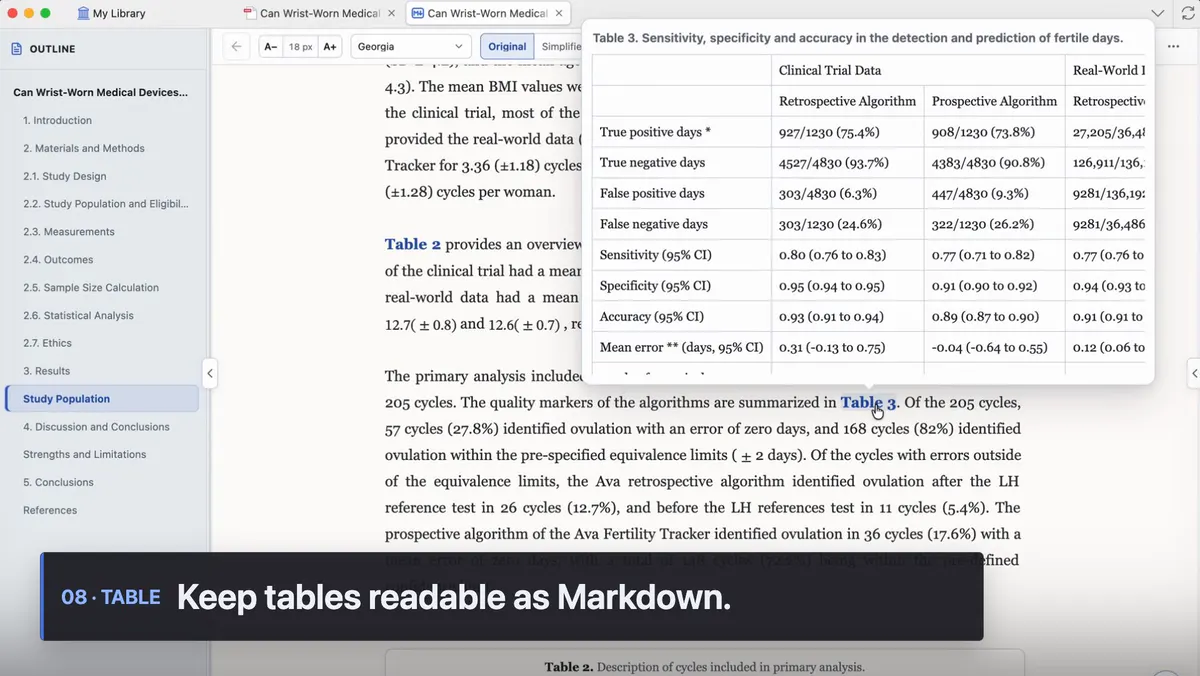
The default Mktero account reflows two-column layouts into continuous Markdown. No separate OCR key is required. The same PDF is cached locally.
Reflow columns, formulas, tables, and figures — then jump back to the original PDF.
Built for people who still read papers in Zotero
Text, formulas, tables, and figures stay mapped to PDF pages and regions. If the match is uncertain, Mktero does not guess.
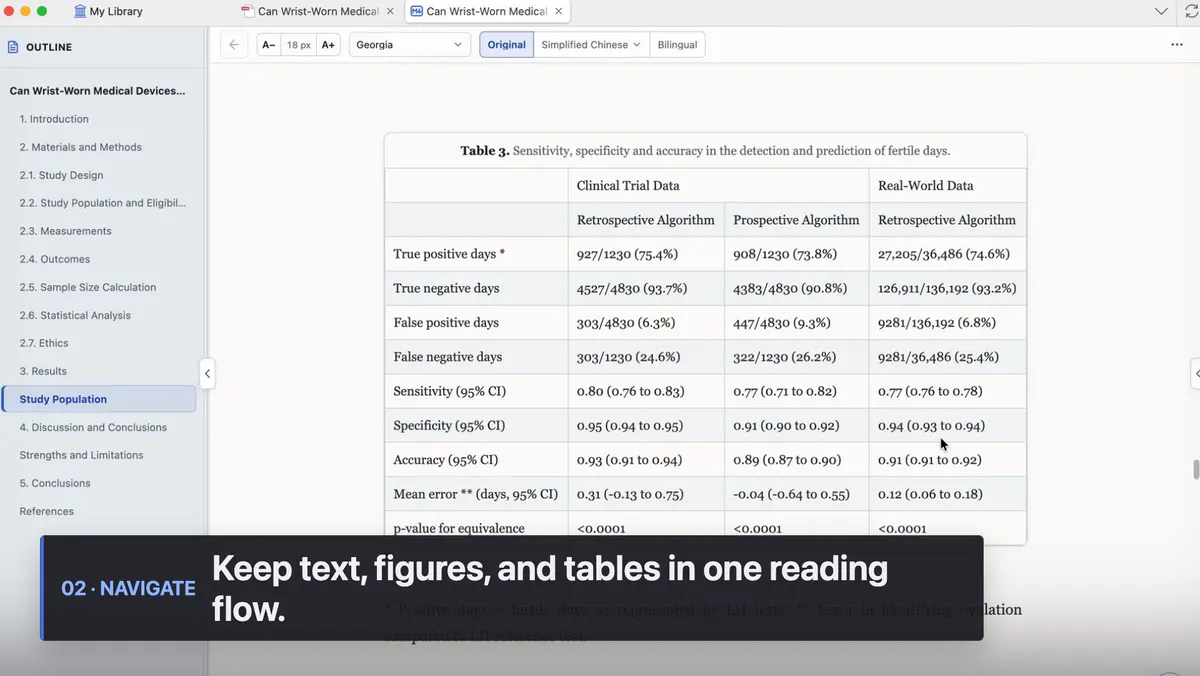
The default Mktero account reflows two-column layouts into continuous Markdown. No separate OCR key is required. The same PDF is cached locally.
Highlights, underlines, and comments stay in the reading tab and sync to Zotero PDF annotations.
Jump from a sentence to a reliable page and region, or copy it with paper, page, and Zotero link.
Credentials, Markdown, figures, and maps live in your Zotero profile. Mktero does not sync them.
Open from Zotero, read as continuous text, and keep structure, figures, and notes in one tab.
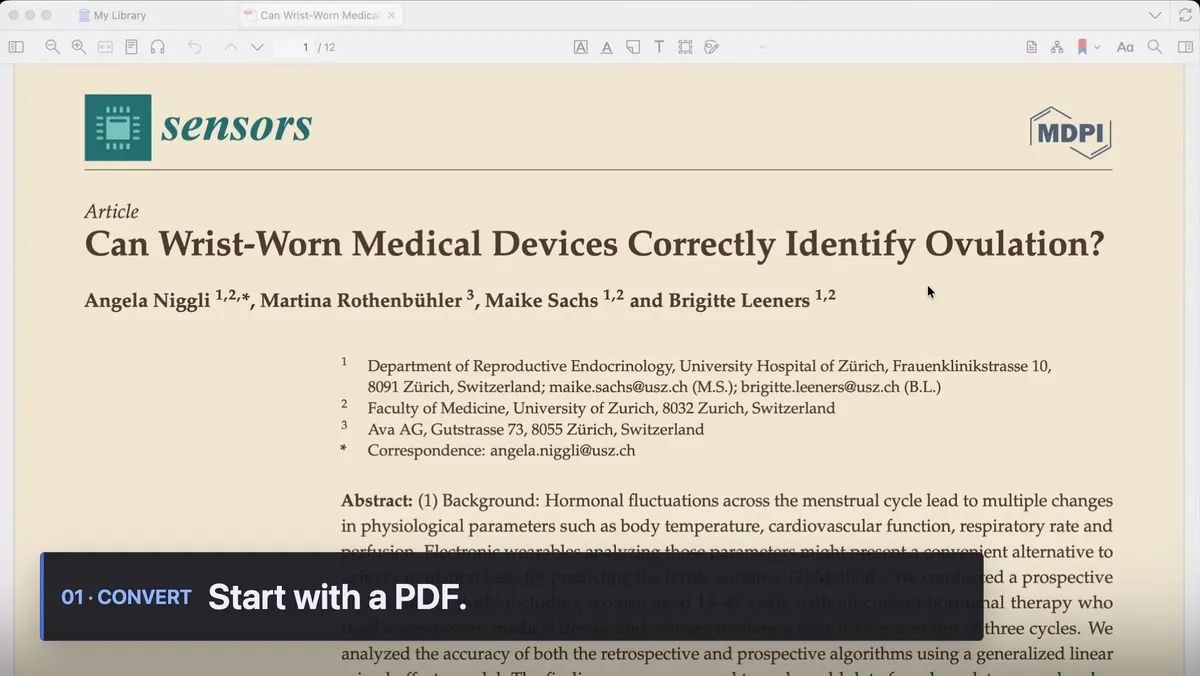
A local file becomes a reading-first Markdown tab. A cache hit skips the remote conversion.
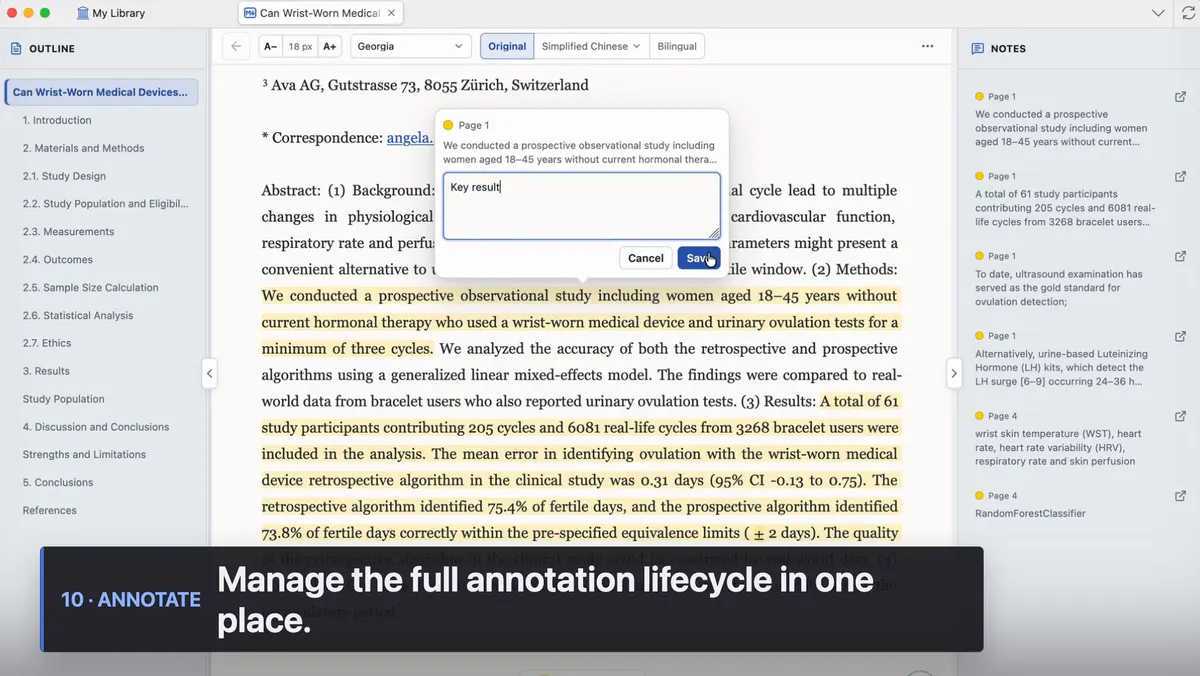
Create, recolor, comment, or delete annotations without leaving the line you are on.
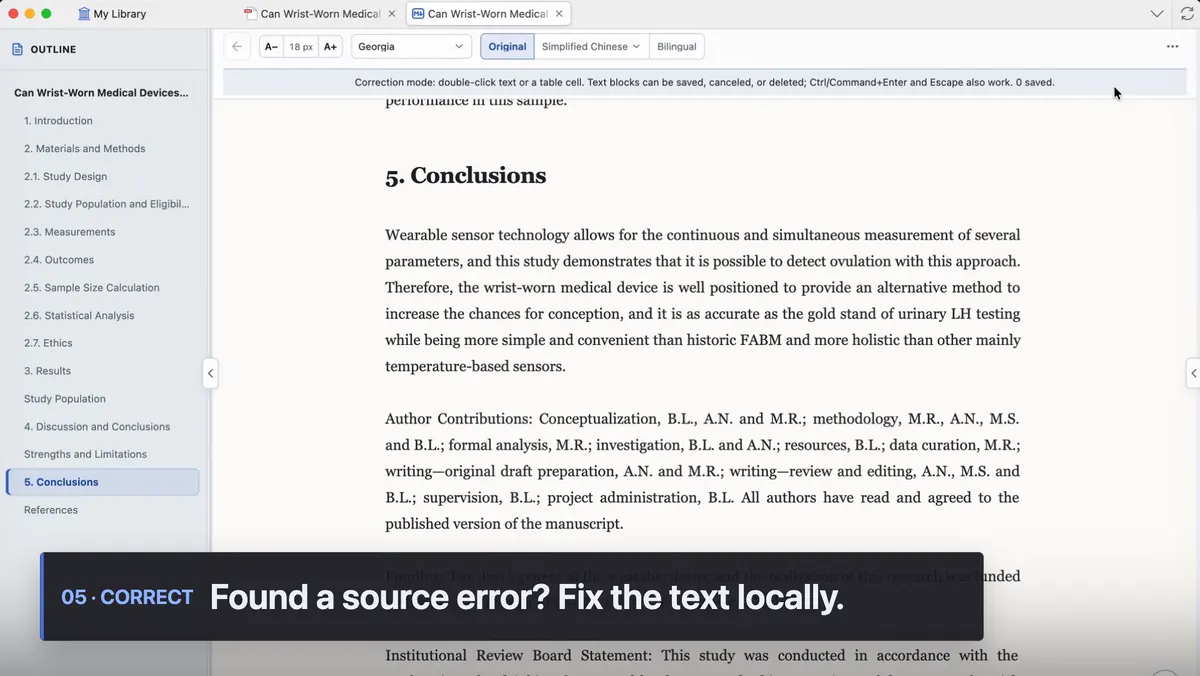
Edit a paragraph or table cell without rewriting the immutable conversion. Restore anytime.
Mktero is a Zotero extension. The default conversion uses your Mktero account. Switch to your own OCR if you do not want the PDF sent to Mktero.
A restartless reading tab: outline, citations, annotations, and the library you already keep.
Switch to your own MinerU cloud or a local MinerU service if you do not want the PDF sent to Mktero. This is not the default path.
Another alternative. With your own Mistral key, the PDF is not sent to Mktero.
About five minutes, and the default path needs no separate OCR key.
Take the latest release file. Zotero then keeps formal releases up to date on its own.
Choose Tools → Plugins, open the gear menu, and pick Install Add-on From File.... No restart is needed.
Sign in under Settings → Mktero, then right-click a PDF and choose Read as Markdown with Mktero.
Optional AI translation never rewrites the source. The citation graph only links items already in the current library.
Translation stays opt-in. Switch views without losing your place. The source Markdown does not change.
Match direct references by DOI or arXiv, refreshing from Semantic Scholar, OpenCitations, and OpenAlex when needed.
Outline, continuous text, figures, and notes in one place. The PDF stays the source of truth.
With the default converter, a cache miss sends the complete PDF to the Mktero service you signed in to. If you switch to your own MinerU or Mistral, the PDF goes there instead and is not sent to Mktero. Everything else stays in the local profile.
Read the privacy notesInstall the XPI, sign in to Mktero, and open the next PDF as Markdown.